Import and Export
With Modern CSV, you can import and export the following file types:
- JSON
- XML
- Excel
- PDF (export only)
Since printing is similar to exporting to PDF, printing is included in this section as well. It can be considered an export to a physical printer instead of a file.
Import
Import sources
With Import from JSON, XML, or Excel, you can import from Local Files, Clipboard, or URL.
Clipboard imports the current clipboard text. URL downloads the source and opens it in the import window.
JSON and XML
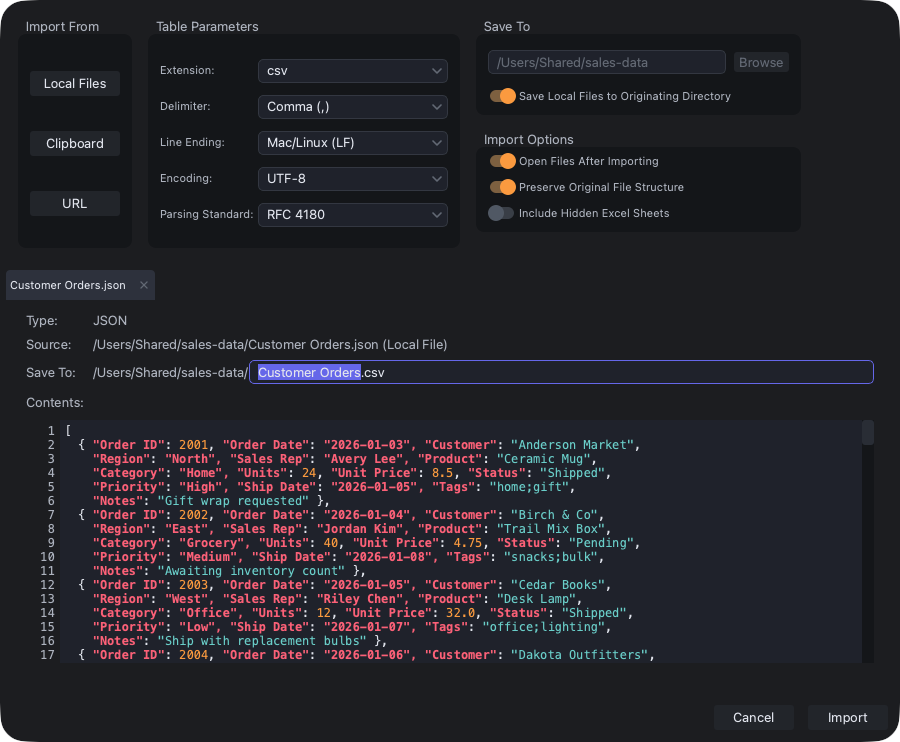
Import from JSON, XML, or Excel
Importing from JSON and XML are similar processes. When importing, it looks for repeating patterns and places them in table form for more compact editing. The Preserve Original File Structure option will yield a file that may look a bit more awkward, but will allow you to export back to JSON or XML without losing any information or the file structure.
Excel
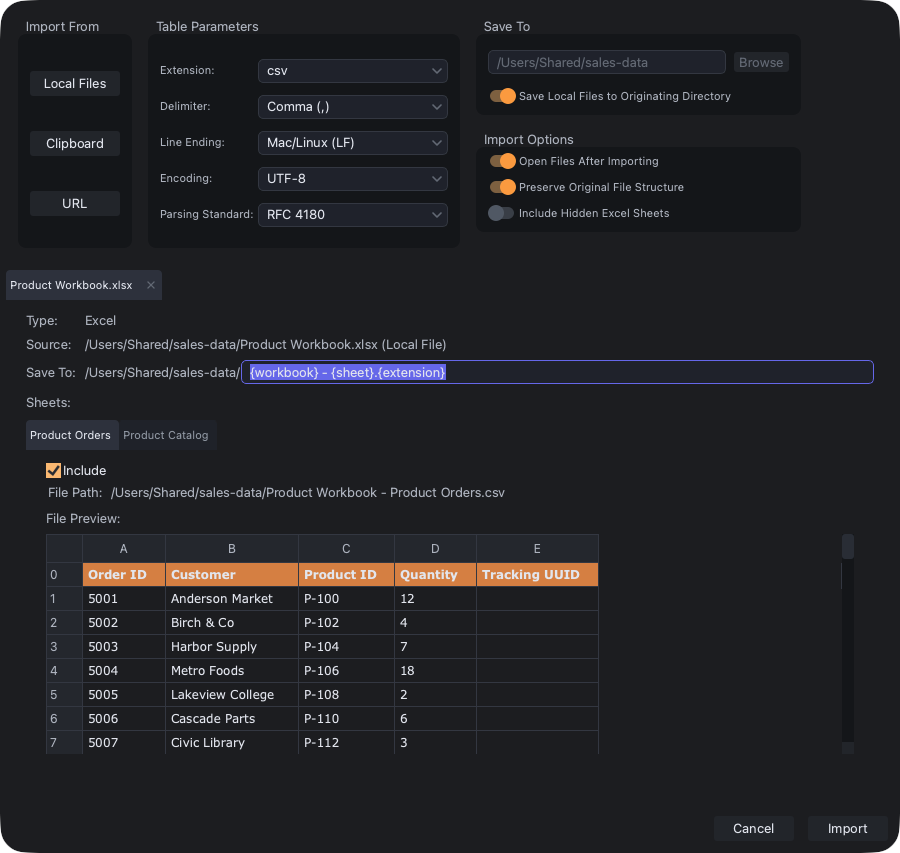
Import from JSON, XML, or Excel
When importing from Excel, it will only import the raw text in the cells, although date/time formats will be imported in ISO 8601 format. All cell formatting, cell size, formulas, charts, etc., will be ignored since those aren't part of the CSV standard. If your Excel file has multiple tabs, each tab will be imported into a separate CSV file. You can choose which tabs to import or not import.
It accepts Open XML workbook packages (.xlsx, .xlsm, .xltx, and .xltm) natively supported by Excel 2007 and newer.
Export
JSON and XML
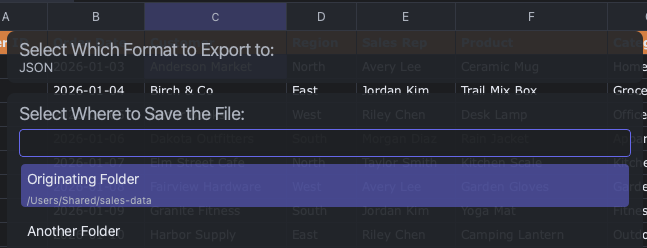
Export to JSON, XML, or Excel
As mentioned previously, if you export a file that had been imported with the Preserve Original File Structure option set, the exported version will have the same file structure.
Excel
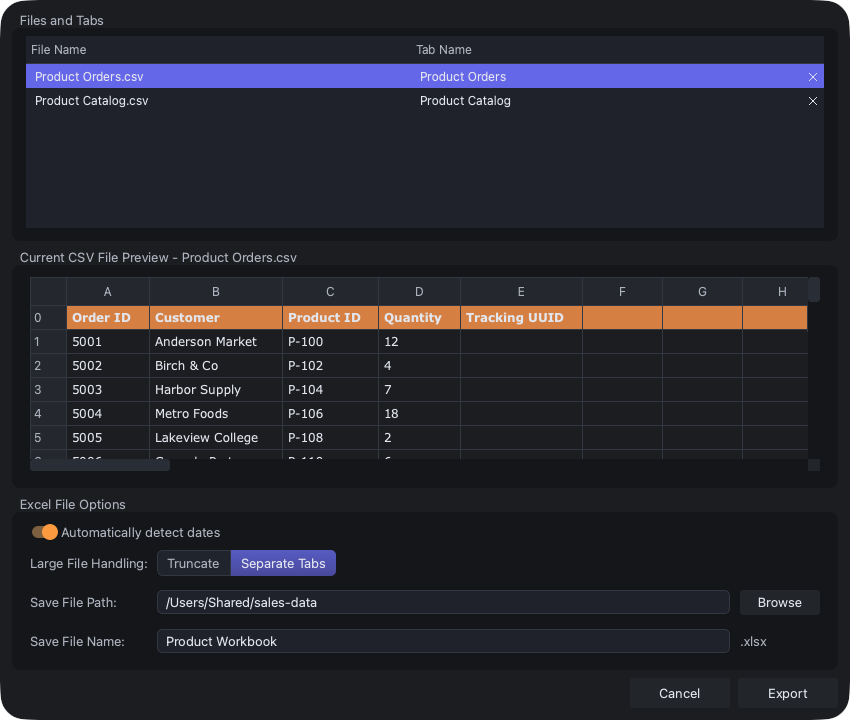
Export to JSON, XML, or Excel
If you select the Excel option, this window will pop up. Multiple CSV files can be exported into a single Excel file where each CSV file is one tab.
Text and row/column sizes will be preserved. There's also an option to store dates and times as Excel date/time types.
It supports Excel Workbook (.xlsx), natively supported by Excel 2007 and newer.
The Export to PDF command is the same as printing except it goes to a PDF file instead of a physical printer. Learn more about printing here.
Printing
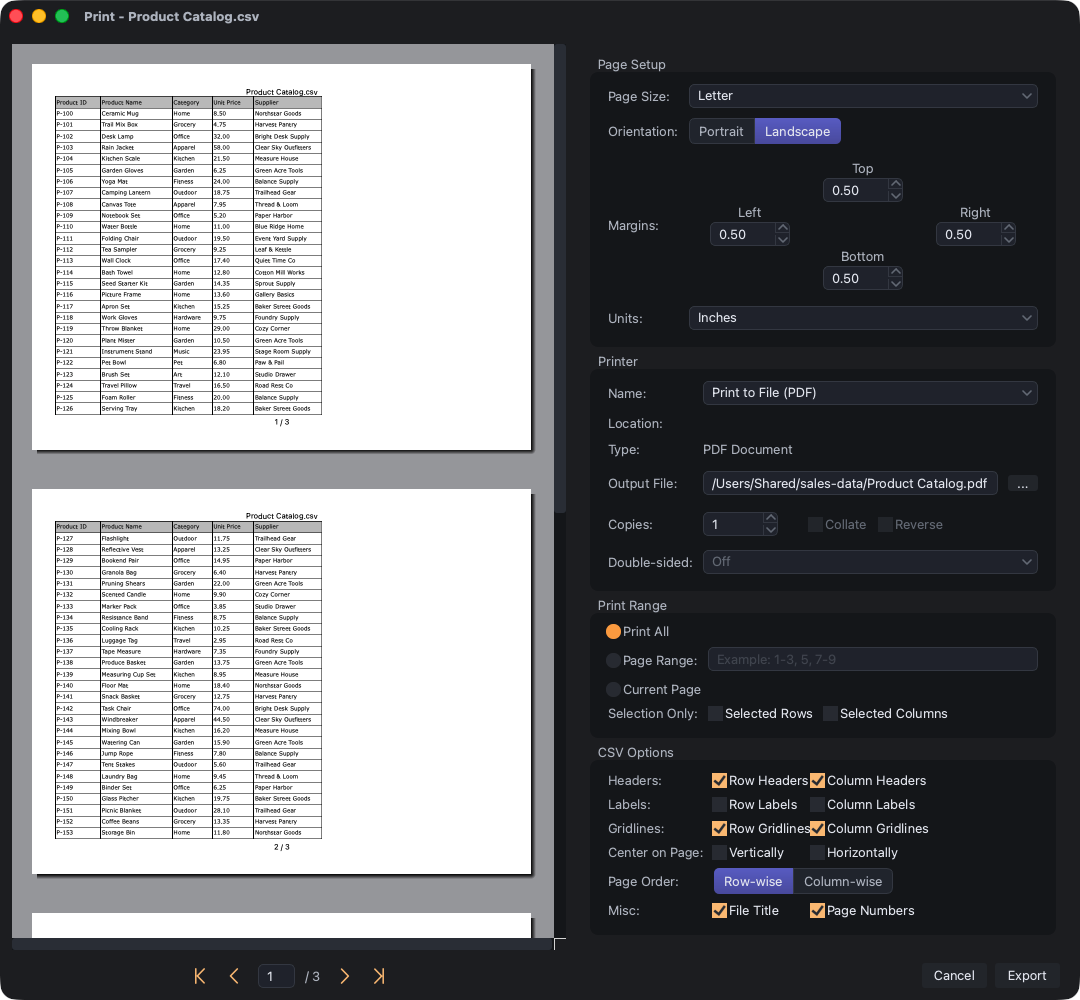
Print
The Print command brings up a Print dialog with a print preview and 4 sections:
- Page Setup
- Printer
- Print Range
- CSV Options
Most of the options are self-explanatory. Here are some explanations for options that are not completely self-explanatory.
To export to PDF, in the Printer section's Name field, select Print to File (PDF). Then, select the output file path next to the Output File field. The Export to PDF function opens the same dialog with the Name field already set to the PDF option.
If you only want to print a small portion of the file, in the program's main window, select either the rows or the columns you want. Then, in the Print Range section next to the Selection Only field, check Selected Rows or Selected Columns or both.
Here's an explanation of the CSV Options section:
- Headers: If you have at least one header row or column, these options will show them on every page.
- Labels: You can print the row or column number. If you have the
Represent Columns as Letterssetting enabled, it will print letters for columns. It will also respect your settings forFirst Row IndexandFirst Column Index. - Gridlines: You can show or hide the row or column gridlines.
- Center: You can center the table on the page vertically, horizontally, or both.
- Page Order: This applies to files with more rows and columns than can fit on one page. Row-wise means page 2 will be the same rows as page 1 but the columns will be to the right. It will keep shifting right until it runs out of columns. Then, it will start on the next set of rows and the first columns. Column-wise is the opposite. It will keep the columns the same and go down the rows, then go back up and start on the next set of columns.
- Misc: You can print the file title at the top or the page numbers at the bottom in the center or both.