Scripts Plugin
Overview
The Scripts plugin lets you create custom Modern CSV commands with Python.
Scripts can read table data, edit cells, call built-in Modern CSV commands, open Launcher prompts, and change settings. A script can be a one-off command or part of a submenu of related commands.
You can also make a script by recording a macro. Your actions will be translated into Python code that you can then play back or edit.
If you don't have experience with Python or need to brush up on the syntax, review the Python Basics for Plugins page.
What a Script Looks Like
Each script has:
- command metadata
- a
run(mc)function - calls to the Modern CSV scripting API through
mc
This example marks selected negative numeric cells.
COMMAND = {
    "id": "mark_negative_values",
    "name": "Mark Negative Values",
    "submenu": "Data Cleanup",
    "shortcut": "ctrl+alt+n",
    "description": "Prefix selected negative numeric cells with NEGATIVE.",
}

def run(mc):
    cells = []

    for cell in mc.selection.cells:
        if mc.is_numeric(cell.value) and cell.value < 0:
            cell.value = f"NEGATIVE: {cell.value}"
            cells.append(cell)

    if cells:
        mc.edit.set_cells(cells, change_selection=False)
The Script Editor shows the metadata fields separately and shows only the body of run(mc).
User Interface
There are several ways to interact with the Scripts plugin:
- Main Window Commands - Commands found in the Tools/Scripts menu or in the Command Launcher.
- Script Manager - Found in the panel on the right side.
- Script Editor - A separate window with a lightweight code editor.
- Scripts Console - A Python console found in the Console panel.
Main Window Commands
These commands are available from the Tools/Scripts menu and the Command Launcher in the main window:
| Command | Description |
|---|---|
New Script |
Create a new script and open it in the Script Editor. |
Edit Script |
Open an existing script in the Script Editor. |
Run Script |
Run a script. |
Run Script (Debug) |
Run a script with the debug server enabled. |
Remove Script |
Delete a script. |
Duplicate Script |
Create a copy of a script. |
Open Scripts Console |
Open the Python Console in the Console panel. |
Open Python Debug IDE |
Open the configured Python debug IDE. |
Script Manager
The Script Manager lists your saved scripts. Each script has buttons for:
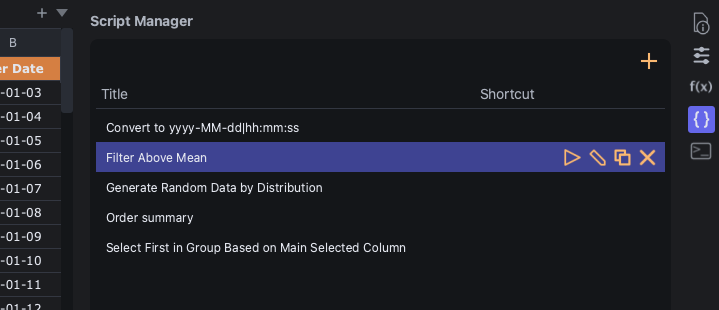
| Command | Description |
|---|---|
Run Script |
Run the script. |
Edit Script |
Open the script in the Script Editor. |
Duplicate Script |
Create a copy of the script. |
Remove Script |
Delete the script. |
Click the + button to create a new script.
Script Editor
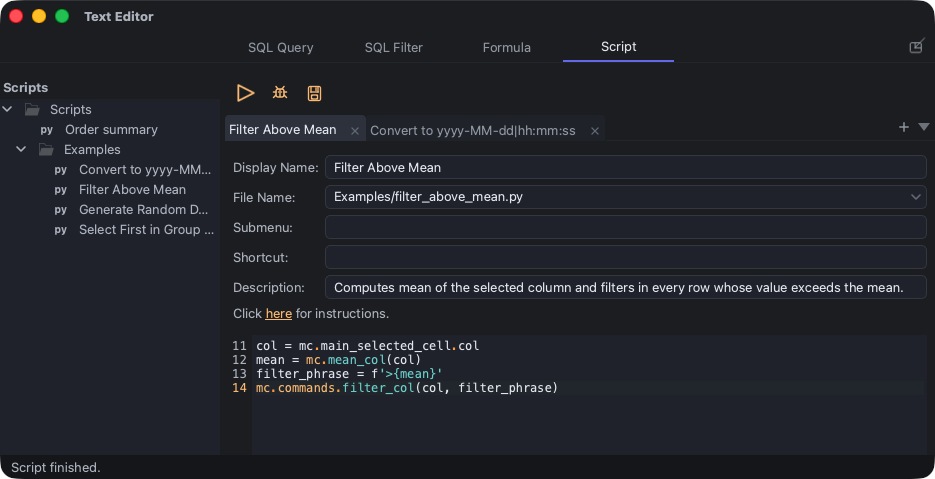
The Script Editor has fields for:
- Display Name
- File Name
- Submenu
- Shortcut
- Description
Display Name is what appears in the UI. Submenu groups related scripts together. Shortcut is optional.
The editor shows only the function body. Modern CSV stores the full .py file with the COMMAND metadata and the def run(mc): line.
If you prefer the full source, use Open File in External Text Editor or Open in External Text Editor to open the script in an external text editor.
Editor Commands
The Script Editor has its own menu bar, keyboard shortcuts, and Command Launcher.
File
| Command | Shortcut |
|---|---|
New Script |
Ctrl+N |
Open File in External Text Editor |
|
Save |
Ctrl+S |
Close Tab |
Ctrl+W |
Copy File Path to Clipboard |
|
Copy File Name to Clipboard |
|
Copy Folder Path to Clipboard |
|
Show (Reveal) File in File System |
|
Duplicate File |
|
Move File |
|
Rename File |
|
Delete File |
|
Close |
Ctrl+Q |
Edit
| Command | Shortcut |
|---|---|
Undo |
Ctrl+Z |
Redo |
Ctrl+Y |
Cut |
Ctrl+X |
Copy |
Ctrl+C |
Paste |
Ctrl+V |
Data
| Command | Shortcut |
|---|---|
Move Line Up |
Ctrl+Shift+Up |
Move Line Down |
Ctrl+Shift+Down |
Insert Line Below |
Ctrl+Enter |
Insert Line Above |
Ctrl+Shift+Enter |
Delete Line |
Ctrl+Shift+K |
Delete to End of Line |
Ctrl+K, then Ctrl+K |
Duplicate Line |
Ctrl+Shift+D |
Join Line Below |
Ctrl+J |
Comment Line |
Ctrl+/ |
Indent Line |
Ctrl+] |
Outdent Line |
Ctrl+[ |
Selection
| Command | Shortcut |
|---|---|
Select Current Line |
Ctrl+L |
Select Up |
Ctrl+Alt+Up |
Select Down |
Ctrl+Alt+Down |
Select Word |
Ctrl+D |
Select All Words |
Alt+F3 |
Find
| Command | Shortcut |
|---|---|
Find |
Ctrl+F |
Replace |
Ctrl+H |
Run
| Command | Shortcut |
|---|---|
Run |
Ctrl+R |
Run (Debug) |
F6 |
Tools
| Command | Shortcut |
|---|---|
Command Launcher |
Ctrl+Shift+P |
View Scripts Python Console in Main Window |
Go To
| Command | Shortcut |
|---|---|
Go to Script |
Ctrl+P |
Switch to Tab on the Right |
Ctrl+PgDown |
Switch to Tab on the Left |
Ctrl+PgUp |
File
| Command | Shortcut |
|---|---|
New Script |
Cmd+N |
Open File in External Text Editor |
|
Save |
Cmd+S |
Close Tab |
Cmd+W |
Copy File Path to Clipboard |
|
Copy File Name to Clipboard |
|
Copy Folder Path to Clipboard |
|
Show (Reveal) File in File System |
|
Duplicate File |
|
Move File |
|
Rename File |
|
Delete File |
|
Close |
Cmd+Q |
Edit
| Command | Shortcut |
|---|---|
Undo |
Cmd+Z |
Redo |
Cmd+Y |
Cut |
Cmd+X |
Copy |
Cmd+C |
Paste |
Cmd+V |
Data
| Command | Shortcut |
|---|---|
Move Line Up |
Cmd+Shift+Up |
Move Line Down |
Cmd+Shift+Down |
Insert Line Below |
Cmd+Enter |
Insert Line Above |
Cmd+Shift+Enter |
Delete Line |
Cmd+Shift+K |
Delete to End of Line |
Cmd+K, then Cmd+K |
Duplicate Line |
Cmd+Shift+D |
Join Line Below |
Cmd+J |
Comment Line |
Cmd+/ |
Indent Line |
Cmd+] |
Outdent Line |
Cmd+[ |
Selection
| Command | Shortcut |
|---|---|
Select Current Line |
Cmd+L |
Select Up |
Cmd+Opt+Up |
Select Down |
Cmd+Opt+Down |
Select Word |
Cmd+D |
Select All Words |
Opt+F3 |
Find
| Command | Shortcut |
|---|---|
Find |
Cmd+F |
Replace |
Cmd+Opt+F |
Run
| Command | Shortcut |
|---|---|
Run |
Cmd+R |
Run (Debug) |
F5 or Cmd+Shift+Y |
Tools
| Command | Shortcut |
|---|---|
Command Launcher |
Cmd+Shift+P |
View Scripts Python Console in Main Window |
Go To
| Command | Shortcut |
|---|---|
Go to Script |
Cmd+P |
Switch to Tab on the Right |
Cmd+PgDown |
Switch to Tab on the Left |
Cmd+PgUp |
Scripts Console
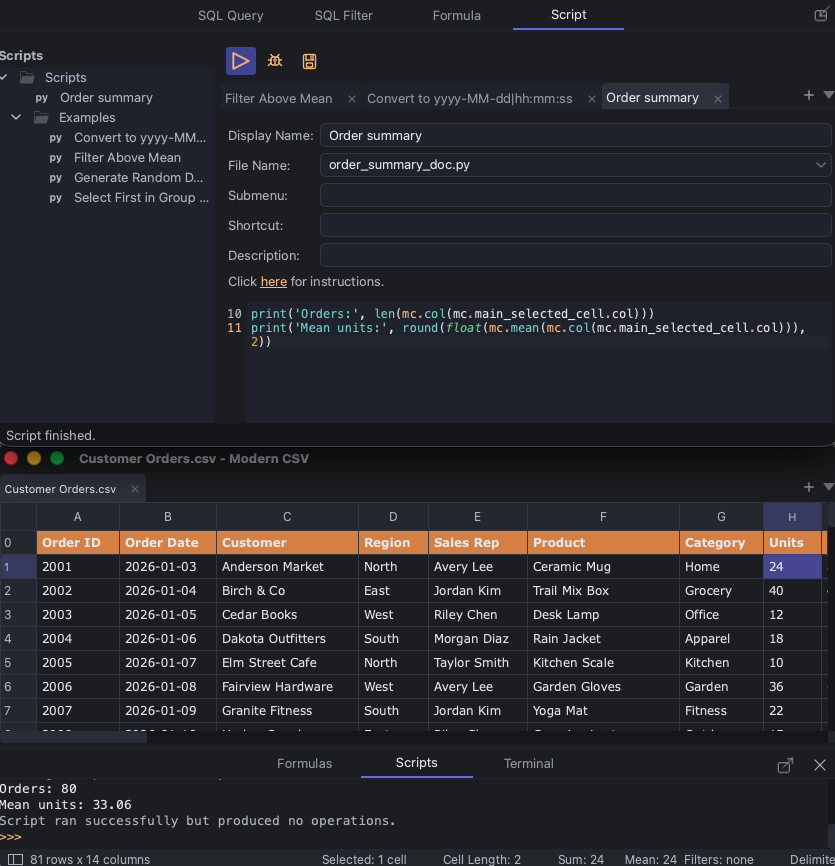
The Scripts Console is a Python console that displays the output of print() statements and Python error messages. You can also type Python statements into it.
Use Toggle Show Console Panel if the console is hidden.
Macros
Record macros to write scripts based on your actions. Start recording with the Start Recording Macro command and stop with Stop Recording Macro. The shortcut for both is F5. It will then save a script in the Macros folder and open it in the text editor. The script name will include a time stamp for when macro recording stopped. You're free to edit, rename, and move this script as you wish.
Launcher Prompts
Scripts can ask the user for input with mc.run_queries().
queries = [
    mc.QueryData(
        query_id="column",
        title="Output Column",
        description="Enter a column number, letter, or title.",
        input_type=mc.InputType.COLUMN_NUMBER,
        use_entry_feedback=True,
    )
]

responses = mc.run_queries(queries)
if responses is None:
    return

output_col = responses["column"]
mc.edit.set_col(output_col, list(range(1, mc.row_count() + 1)))
Use mc.msgbox() for a simple message or confirmation.
response = mc.msgbox(
    "Replace selected cells?",
    title="Confirm",
    buttons=[("replace", "Replace"), ("cancel", "Cancel")],
    default="replace",
    kind="question",
)

if response == "cancel":
    return
Where Scripts Are Stored
Script files are .py files stored in the preferences folder under python-user/scripts. You can open the preferences folder with the Open Preference File Folder command.
The Script Editor sidebar can show folders and files. Folders can contain more folders, so you can organize scripts by workflow.
Debugging
Most debugging can be done by using print() statements to output variables to the Scripts Console. For breakpoints and stepping, run the script with Run (Debug) and attach your IDE to the debug server.
Debugging uses the Debug Adapter Protocol (DAP), the same as Formulas. Visual Studio Code is officially supported.
Running Run (Debug) opens the Debug window:

Examples
These examples show what you would type in the Script Editor.
Mark Negative Values
Prefix selected negative numeric cells with NEGATIVE:.
cells = []

for cell in mc.selection.cells:
    if mc.is_numeric(cell.value) and cell.value < 0:
        cell.value = f"NEGATIVE: {cell.value}"
        cells.append(cell)

if cells:
    mc.edit.set_cells(cells, change_selection=False)
Add an ID Column
Run the built-in command that adds or updates an ID column.
mc.commands.add_or_update_id_col(first_id_value=1)
Write a Summary Row
Write totals below numeric columns.
last = mc.last_row_index()

for c in range(mc.col_count()):
    values = mc.col(c)
    if mc.is_numeric(values):
        mc.edit.set_cell(last + 1, c, mc.sum(values))
Prompt, Then Filter
Ask for a column and filter string, then run the built-in filter command.
queries = [
    mc.QueryData(
        query_id="column",
        title="Column",
        input_type=mc.InputType.COLUMN_NUMBER,
    ),
    mc.QueryData(
        query_id="filter",
        title="Filter",
    ),
]

responses = mc.run_queries(queries)
if responses is None:
    return

mc.commands.add_filter(
    column_or_row=responses["column"],
    filter_string=responses["filter"],
)
Use the Current Record
If the table has header rows, mc.record() returns a dictionary for a data row.
record = mc.record(mc.main_selected_cell.row)
name = record.get("Name", "")
email = record.get("Email", "")

mc.msgbox(f"{name}\n{email}", title="Current Record")
See the Scripts API Reference for API details.