Plugins
Starting with version 3, Modern CSV supports plugins for advanced features.
Installation
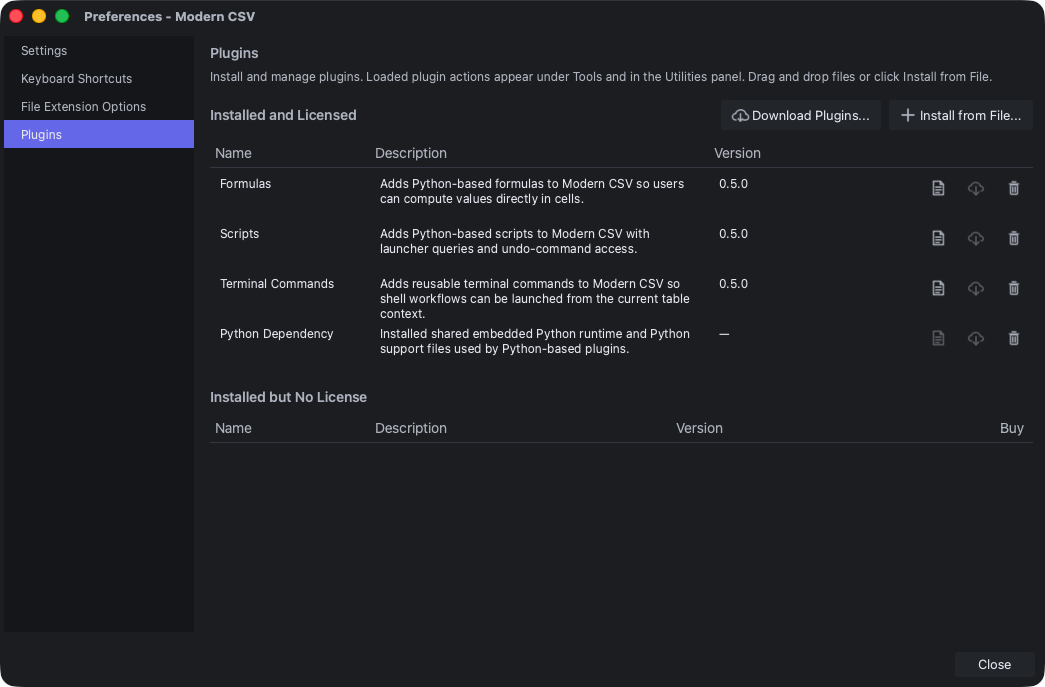
Manage Plugins
To install a plugin, first get the plugin file (.mcsv-plugin). The file must match your operating system. Then install it using one of the following methods:
- Plugin Manager: Go to the Plugins tab in the Preferences window and click the Install from File... button. A file browser will open for you to select the plugin file.
- Download: Click Download Plugins... in the Plugin Manager, select one or more plugins, then click Download and Install.
- Drag and drop: Drag and drop the
.mcsv-pluginfile into the main window or the Preferences window. If the Plugins tab is not already open, it will switch to it automatically.
If the same version or a newer version of the plugin is already installed, Modern CSV will ask if you want to replace it.
Managing Plugins
You can view and manage your installed plugins in the Plugin Manager. Each plugin shows its name, description, and a link to its documentation. From here you can also uninstall plugins.
Open Application Data Folder opens the folder where installed plugin files are stored.
Licensing
Installing plugins requires a Premium license. Some plugins can also require their own plugin license (they will be listed under the Entitlements in the license key). Use Open License Manager to add or update your license key.
If a plugin is installed but unlicensed, it will be listed under Installed but No License in the Plugin Manager.
Available Plugins
- Formulas - Add Python-based formulas to compute cell values directly in your spreadsheet.
- Scripts - Create custom Modern CSV commands with Python.
- Terminal Commands - Run saved terminal commands from Modern CSV.