Sort, Filter, and Query Data
Sort Data
There are two ways to sort data:
Sort entire rows and columns
Data can be sorted either by columns or rows, either ascending or descending. It sorts based on the data in the main selected row or column. The headers won't be sorted.
Sorting works in Edit Mode, Stream Edit Mode, and Read-Only Mode. Dates and times are parsed with the Date Ordering setting when the order is ambiguous.
Double-click on the row or column labels.
Sort Selected [Row|Column] - Ascending
Sort Selected [Row|Column] - Descending
Ctrl+Z undoes a sorting operation.
Sort only selected cells
The following commands sort only the data in the selected cells. No data outside the selection will be affected.
Date parsing works the same here: ambiguous month/day/year dates use Date Ordering.
Sort Selected Cells Horizontally - Ascending
Sort Selected Cells Horizontally - Descending
Sort Selected Cells Vertically - Ascending
Sort Selected Cells Vertically - Descending
Filter Data
There are two types of filters:
- Pattern Filters
- SQL Filters
Pattern Filters use a simple syntax to filter either by rows or columns. That means it only keeps columns or rows that pass the filter criteria. The headers won't be filtered. A pattern filter only applies to a single row or column. Multiple pattern filters across multiple rows and columns can exist.
SQL Filters use SQL conditions to filter rows. A single filter can apply to multiple columns.
Filtering is subject to the undo and redo commands (Ctrl+Z and Ctrl+Y). However, it will not change the underlying data when you save the file.
Filtering is subject to the undo and redo commands (Cmd+Z and Cmd+Y). However, it will not change the underlying data when you save the file.
To delete the filtered out data, use the Remove All Filtered Out and Hidden Data command. To save the filtered in data (i.e. what's shown on the table) into a separate file, use the Save Visible Data As command.
Filtering works in Edit Mode, Stream Edit Mode, and Read-Only Mode.
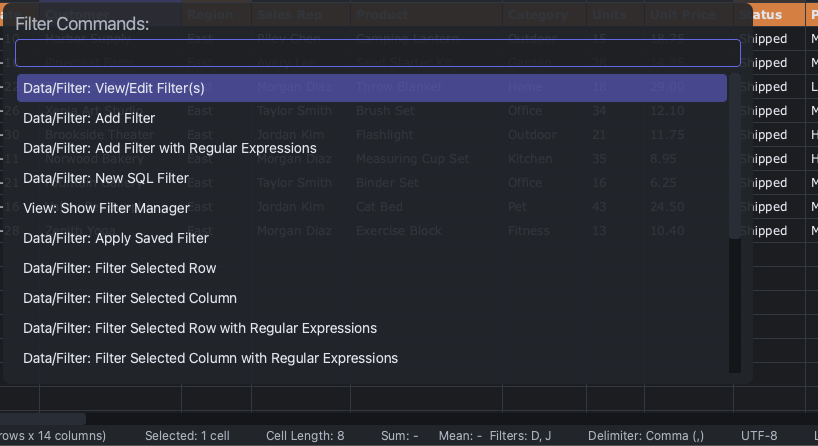
All the filter commands will be made available to you if you click the Filters portion of the status bar:
Filter Manager
The Filter Manager shows all filters for the current table in one place. You can use it to add, edit, disable, duplicate, remove, save, or refresh filters.
The Saved Filters table shows filters that have been saved for reuse. You can save either pattern filters or SQL filters. With pattern filters, entering a location is optional. If you don't include it, then when you apply the filter, it will ask you the location. Saved filters are stored on your machine, so they persist across sessions.
Adding filters
Add Filter
Add Filter with Regular Expressions
Filter Selected [Row|Column]
Filter Selected [Row|Column](s) with Selected Cell Contents
Quick Filter on Selected Column
New SQL Filter
Quick SQL Filter
Apply Saved Filter
The Filter Selected [Row|Column](s) with Selected Cell Contents commands filter multiple values if you select multiple values. It can also simultaneously filter several columns or rows if you select several columns or rows.
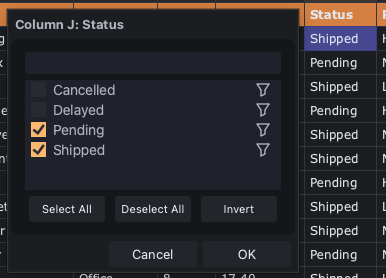
Quick Filter on Selected Column pops up a small window where you can select individual values in a column to include or exclude. If it's numerical, you can also view a histogram of the values and create a numerical filter.
New SQL Filter opens a text editor where you can write, apply, and save SQL filters.
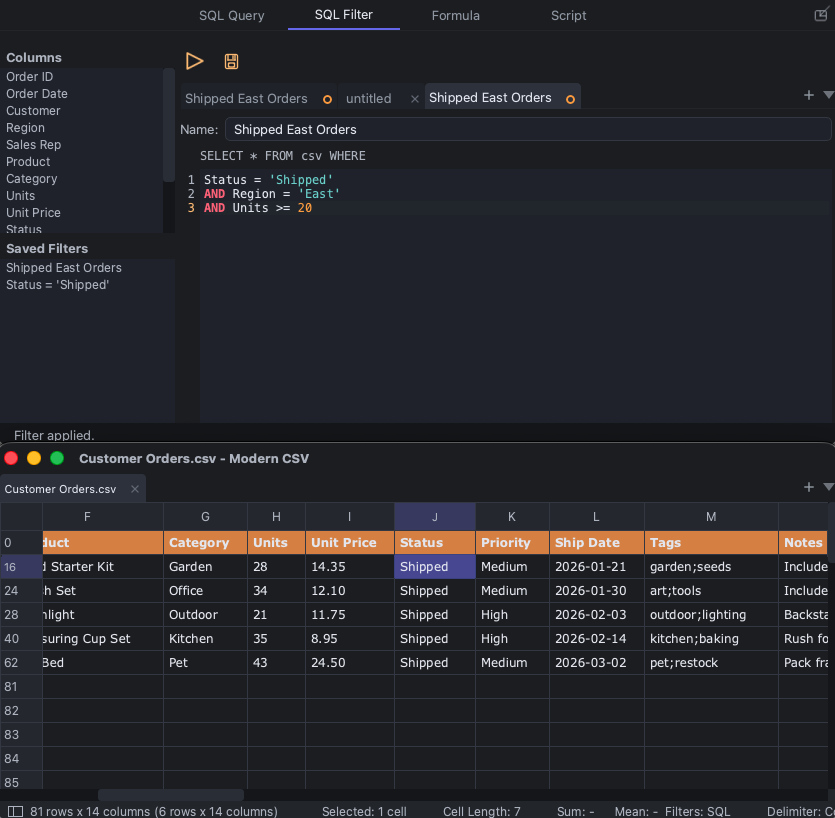
In the SQL Filter text editor, the left side bar has two parts: Columns and Saved Filters. The Columns section includes all column titles in the current file (per the last header row). You can double click a table or column name to include it in the text. Saved Filters is a list of past filters that you've saved. If the name field is left empty, its title will be the first part of the filter text.
Quick SQL Filter allows you to add a single-line filter in the launcher rather than opening the text editor. This is for quick one-off filters, so they cannot be saved or reused.
Apply Saved Filter enables you to use filters you've saved in the past for general use. You can save filters in the Filter Manager. You can also save SQL filters in the SQL Filter text editor.
Viewing and editing filters
View/Edit Filter(s)
Show Filter Manager
For value-based filtering, the Unique Values window can list distinct values from one or more selected columns and filter selected values in or out.
Removing filters
Remove Individual Filter(s)
The Remove All Filters command removes all filters.
Filters can also be removed using the Filter Manager.
Pattern Filter Syntax
Only rows or columns matching the pattern are shown.
| Operator | Meaning | Examples |
|---|---|---|
* |
Wildcard | abc* matches abcdef. |
| and & |
OR and AND | *abc*&*def*|*ghi matches def123abc or ghi but not abc or def. |
! |
NOT (exclude from search) | !*abc* matches def but not abcdef. |
< and > |
LESS THAN and GREATER THAN | <50 matches 30, but not 70. |
<= and >= |
LESS THAN OR EQUAL and GREATER THAN OR EQUAL | <=50 matches 50 and 30, but not 70. |
+ and - (after a number) |
GREATER THAN OR EQUAL (+) and LESS THAN OR EQUAL (-) |
50+ matches 50 and 70, but not 30. |
- (between two numbers) |
BETWEEN (inclusive) | 0-10 matches 0, 4.2, and 10, but not 12 or -3. |
# (first character) |
Regular expressions; ignores the other pattern syntax | #[1-9]\d{3,4}(\.\d+)? |
\ |
Escape character | \* matches a literal *; \\ matches a literal \. |
Prefix flags go at the start of the pattern:
| Flag | Meaning | Examples |
|---|---|---|
/c |
Case sensitive | /c Red matches Red, but not red. |
/r |
Regular expressions | /r [1-9]\d{3,4}(\.\d+)? |
/p |
Partial cell match; no surrounding * needed |
/p abc matches 123abcdef. |
Combine flags in any order, followed by a space: /rp Cat.
Matching is case insensitive unless /c is used. Regular expressions beginning with # are case sensitive. Spaces before and after non-regex filter strings are ignored.
Use \ to match special characters literally: \\, \*, \|, \&, \!, \<, \>, \+, \-, or \#. The # only needs escaping as the first character. Use \/ to match a slash as the first character.
SQL Filter Syntax
SQL filters keep rows matching a WHERE condition. In the SQL Filter editor and Quick SQL Filter, enter the condition after the displayed SELECT * FROM csv WHERE prefix:
(Status = 'Active' OR Status = 'Pending')
AND "Order Total" >= 100
Column names come from the last header row and are case insensitive. Use double quotes for names containing spaces, such as "Order Total". You can also refer to columns by number with col1 or column1, using the table's column numbering.
Use single quotes for text values. Double an apostrophe inside a value: Name = 'O''Brien'.
| Operator | Meaning | Examples |
|---|---|---|
= |
Equal | Status = 'Active' |
!= or <> |
Not equal | Status != 'Closed' |
<, <=, >, >= |
Less than, less than or equal, greater than, greater than or equal | Amount > 0 |
AND, OR |
Combine conditions; use parentheses to group them | Amount > 0 AND Status = 'Active' |
NOT |
Negate a condition | NOT (Status = 'Closed') |
LIKE |
Match text using % for any number of characters or _ for one character |
Name LIKE 'A%' matches names beginning with A or a. |
IN |
Match any value in a list | Status IN ('Active', 'Pending') |
BETWEEN |
Within a range, including both endpoints | Amount BETWEEN 0 AND 100 |
IS NULL, IS NOT NULL |
Empty or nonempty cell | Email IS NULL |
NOT LIKE, NOT IN, and NOT BETWEEN are also supported: Status NOT IN ('Closed', 'Cancelled').
Values are compared numerically when both can be read as numbers; otherwise, text comparisons are case sensitive. LIKE is case insensitive. To match literal %, _, or \ characters in a LIKE pattern, use \%, \_, or \\.
Hide and Show Data
You can hide rows or columns without deleting the data. Use one of the following commands:
Hide Selected Row(s)
Hide Selected Column(s)
Hide All But Selected Row(s)
Hide All But Selected Column(s)
Hide Empty Row(s)
Hide Empty Column(s)
Hide Empty Row(s) and Hide Empty Column(s) do not require the headers to be empty.
To show the hidden rows/columns again, use the following commands:
Show Hidden Row(s) in Selection
Show Hidden Column(s) in Selection
Show Empty Row(s)
Show Empty Column(s)
Show All Hidden Row(s)
Show All Hidden Column(s)
For the Show Hidden [Row(s)|Column(s)] in Selection commands, you have to select the surrounding rows/columns first. For instance, if you hide column 3 and want to show it again, select columns 2 and 4, then call the Show Hidden Column(s) in Selection command.
To delete the hidden data, use the Remove All Filtered Out and Hidden Data command. To save the shown data (i.e. what's not hidden) into a separate file, use the Save Visible Data As command.
Hidden Rows and Columns in the Filter Manager

At the bottom of the Filter Manager, there's a table for hidden rows and columns. You can disable, edit, and remove them.
Query Data

New SQL Query
Using SQL syntax, you can query data from a single file or across multiple files. The results of the query will be placed in a new table. This is a different feature from SQL filters. SQL filters can only look at a single file and can only apply a filter, not write results in a separate table.
In the SQL Query text editor, the left side bar has two parts: Tables and Columns and Saved Queries. The Tables and Columns section includes all open tables. You can double click a table or column name to include it in the text. Saved Queries is a list of past queries that you've saved. If the name field is left empty, its title will be the first part of the query text.
Like the SQL Filter text editor, the SQL Query text editor has a launcher (Ctrl+Shift+P) and supports multiple cursors.
Like the SQL Filter text editor, the SQL Query text editor has a launcher (Cmd+Shift+P) and supports multiple cursors.
SQL Syntax
SQL Query uses SQLite syntax. Run one read-only SELECT statement at a time, optionally starting with WITH. A final semicolon is optional.
SELECT * FROM csv;
Tables and columns
csvrefers to the active table.- Other open tables use the names shown in Tables and Columns. Names come from filenames without extensions, in lowercase with spaces and punctuation replaced by underscores:
Sales Report.csvbecomessales_report. Duplicate names receive suffixes such as_2. - Column names come from the last header row. Empty headers, or tables without headers, get names such as
Column 1. Duplicate column names also receive suffixes such as_2. Use the names shown in the sidebar;col1andcolumn1are not automatic aliases here. - Header rows are excluded from the data. Hidden and filtered rows and columns are included.
Use double quotes for names containing spaces or SQL keywords, and single quotes for text values. Double an apostrophe inside a value:
SELECT "Customer Name", "Order Total"
FROM sales_report
WHERE "Customer Name" = 'O''Brien';
Select, filter, and sort
All columns are imported as text. Use CAST(column AS REAL) for numeric comparisons and sorting, or CAST(column AS INTEGER) for whole numbers. Without a cast, text sorts alphabetically: 100 comes before 20. See SQLite's type conversion rules.
SELECT Name, CAST("Order Total" AS REAL) AS total
FROM csv
WHERE Status = 'Active'
  AND CAST("Order Total" AS REAL) >= 100
ORDER BY total DESC
LIMIT 20;
| Syntax | Purpose | Example |
|---|---|---|
SELECT * |
Return all columns | SELECT * FROM csv |
SELECT column, ... |
Choose columns and their order | SELECT Name, Status FROM csv |
AS |
Name a result column or give a table an alias | SELECT Name AS customer FROM csv |
DISTINCT |
Remove duplicate result rows | SELECT DISTINCT Status FROM csv |
WHERE |
Keep matching rows | WHERE Status = 'Active' |
ORDER BY |
Sort by one or more expressions; ASC is the default |
ORDER BY Status ASC, Name DESC |
LIMIT ... OFFSET ... |
Limit the result and skip rows | LIMIT 20 OFFSET 40 |
Conditions support =, !=, <>, <, <=, >, >=, AND, OR, NOT, and parentheses, plus the following SQLite expressions:
| Condition | Example |
|---|---|
| Match any value in a list | Status IN ('Active', 'Pending') |
| Exclude values in a list | Status NOT IN ('Closed', 'Cancelled') |
| Match an inclusive range | CAST(Amount AS REAL) BETWEEN 0 AND 100 |
Match text (% = any number of characters; _ = one character) |
Name LIKE 'A%' |
Match a literal % or _ using an explicit escape character |
Name LIKE '%\_%' ESCAPE '\' |
| Match a case-sensitive wildcard pattern | Name GLOB 'A*' |
| Match empty text | Email = '' |
Match SQL NULL, such as a missing value from a join |
Email IS NULL |
Match empty cells (empty text or SQL NULL) |
COALESCE(Email, '') = '' |
NOT LIKE, NOT BETWEEN, and IS NOT NULL are also supported. Text comparisons are case sensitive by default. LIKE ignores case for ASCII letters; use COLLATE NOCASE for other ASCII case-insensitive comparisons, such as Status = 'active' COLLATE NOCASE.
Group and summarize
Use GROUP BY to group rows and HAVING to filter the groups. Aggregate functions include COUNT, SUM, AVG, MIN, MAX, and GROUP_CONCAT.
SELECT Status,
       COUNT(*) AS orders,
       SUM(CAST("Order Total" AS REAL)) AS total
FROM csv
GROUP BY Status
HAVING COUNT(*) > 1
ORDER BY total DESC;
Use casts with MIN and MAX for numeric results too: MAX(CAST(Amount AS REAL)).
Join tables
Open both files, then use their sidebar names. This example combines orders and customers using their Customer ID columns:
SELECT o."Order ID", c.Name, o."Order Total"
FROM orders AS o
JOIN customers AS c
  ON o."Customer ID" = c."Customer ID";
JOIN (or INNER JOIN) keeps matches. LEFT JOIN also keeps unmatched rows from the left table. RIGHT JOIN, FULL OUTER JOIN, and CROSS JOIN are supported too. Use ON for a join condition or USING ("Customer ID") when the key has the same name in both tables.
Combine and reuse results
UNION ALL stacks results; UNION removes duplicates. INTERSECT keeps rows present in both results, and EXCEPT keeps rows from the first result that are absent from the second. Each query must return the same number of columns.
SELECT Name, Email FROM customers
UNION ALL
SELECT Name, Email FROM prospects;
Subqueries and common table expressions (WITH) are supported, including WITH RECURSIVE:
WITH totals AS (
    SELECT "Customer ID", SUM(CAST("Order Total" AS REAL)) AS total
    FROM orders
    GROUP BY "Customer ID"
)
SELECT * FROM totals
WHERE total >= 1000
ORDER BY total DESC;
Calculations and functions
Expressions can appear in SELECT, WHERE, and ORDER BY. These examples use SQLite expressions, built-in functions, and date/time functions:
| Purpose | Example expression |
|---|---|
Arithmetic (+, -, *, /, %) |
CAST(Quantity AS REAL) * CAST(Price AS REAL) |
| Conditional value | CASE WHEN Status = 'Active' THEN 'Yes' ELSE 'No' END |
| Change case or trim spaces | LOWER(TRIM(Email)) |
| Extract text | SUBSTR(Code, 1, 3) |
| Replace text | REPLACE(Phone, '-', '') |
| Count characters | LENGTH(Name) |
| Round a number | ROUND(CAST(Amount AS REAL), 2) |
Replace empty text or NULL |
COALESCE(NULLIF(Email, ''), 'Unknown') |
| Add a day to an ISO date | DATE("Order Date", '+1 day') |
Use || to join text: FirstName || ' ' || LastName.
Date functions use SQLite date formats, such as YYYY-MM-DD. Numeric casts read a numeric prefix; CAST('123abc' AS REAL) returns 123, while empty text or text with no numeric prefix returns 0.
Window functions can calculate across rows while keeping each row in the result:
SELECT Name, "Order Total",
       ROW_NUMBER() OVER (ORDER BY CAST("Order Total" AS REAL) DESC) AS position
FROM csv;