Formulas Plugin
Overview
The Formulas plugin lets you read cells, perform computations, and write the results to cells. It can also be used to print results to the console.
Formulas are Python functions. They can be as simple as adding two cells together or as complex as any algorithm that can be implemented in Python. It comes with an embedded Python interpreter, a custom mc (Modern CSV) API, and the NumPy and SciPy libraries.
If you don't have experience with Python or need to brush up on the syntax, you can review the Python Basics for Plugins page.
Formulas do not automatically re-run when data is changed. They only run when you tell them to and write the data to the cells.
You can save formulas for frequent use. You do not have to save a formula to run it.
Basic Syntax
Formula code is Python.
Names of function getters include c and r for relative indexes and C and R for absolute indexes. The letters can be either order and lower case and upper case can be mixed.
Examples:
mc.cr(-1, 0)
mc.rC(0, 3)
mc.Rc(0, -2)
To set cell values, use return to write a value in per-cell mode. Use mc.set_cell() to write values in single-run mode. See Modes of Operation for more.
Examples:
return mc.cr(-1, 0) + mc.cr(-2, 0)
mc.set_cell(14, 3, 'hamster')
Refer to the Formulas API Reference for all functions.
Refer to the Analysis Tools API Reference for math, statistics, date, and matrix helpers.
Modes of Operation
Formulas run in one of two modes: per-cell or single-run.
Per-cell mode is the default. It will run the function once per selected cell and the return value will be placed in the cell. You can undo the written results with Ctrl+Z on Windows/Linux or Cmd+Z on macOS. For instance, if you want to multiply selected cells' values by 100, select them, call the Quick Formula command, and enter: return cell() * 100 (Quick Formula doesn't require the mc namespace).
Single-run mode is run once regardless of the selection and return values are ignored. You can set any cell's value using the mc.set_cell() function. For instance, you may want a formula that can compute the sum, mean, and median of columns and place the results at the bottom.
Setting Cell Values
Whether you set a target cell's value by returning it in per-cell mode or calling mc.set_cell() in single-run mode, you can set either single values, lists, or lists of lists (2D):
- Single value (i.e. string,
float, orint): Populates the target cell. list(ornp.ndarray): Populates cells downward in the same column, starting at the target cell.- list of lists (2D list or
np.ndarray): Populates a rectangular block starting at the target cell. Each inner list is one row.
Performance note: Per-cell mode requires one Python call per cell. For large selections, this can be slow. Modern CSV will warn you if a per-cell formula is applied to a large selection and offer the option to switch to single-run mode or cancel.
User Interface
There are several ways to interact with the Formulas plugin:
- Main Window Commands - Commands found in the Tools/Formulas menu or in the Command Launcher.
- Formula Manager - Found in the Utilities panel on the right side.
- Formula Editor - A separate window with a lightweight code editor.
Quick Formula- A way to run a single line formula on the fly.- Formulas Console - A Python console found in the Console panel.
Use Toggle Show Console Panel if the console is hidden.
Main Window Commands
These commands are available from the Tools/Formulas menu and the Command Launcher in the main window:
| Command | Notes |
|---|---|
New Formula |
Opens the Formula Editor to create a new formula. |
Edit Formula |
Opens an existing formula in the Formula Editor. |
Run Formula |
Run a formula on the current selection. |
Run Formula (Debug) |
Run a formula with the debug server enabled. |
Remove Formula |
|
Duplicate Formula |
Creates a duplicate and opens in the Formula Editor. |
Quick Formula |
Input a one-line formula in the launcher. It cannot be saved. |
Open Formulas Console |
Opens the Python Console in the Console panel. |
Open Python Debug IDE |
Opens the configured Python debug IDE to the formulas folder. |
Formula Manager
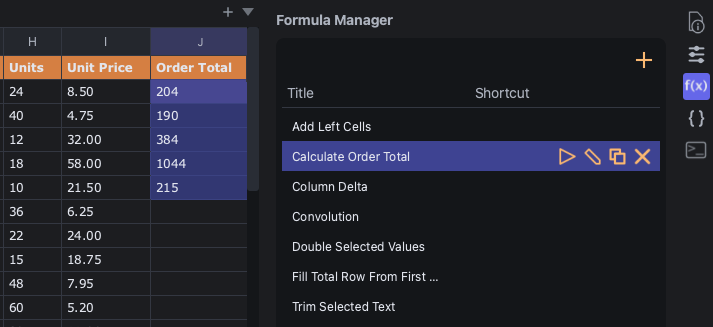
The Formula Manager panel lists all of your saved formulas. It's part of the Utilities panel on the right side of the main window.
Click the + button at the top to create a new formula.
Double-click the Title or Shortcut column to edit that field.
Each formula in the list shows its display name along with the following buttons:
| Button | Command |
|---|---|
 |
Run Formula |
 |
Edit Formula |
 |
Duplicate Formula |
 |
Remove Formula |
Saved formulas can also be run with their keyboard shortcuts.
Formula Editor
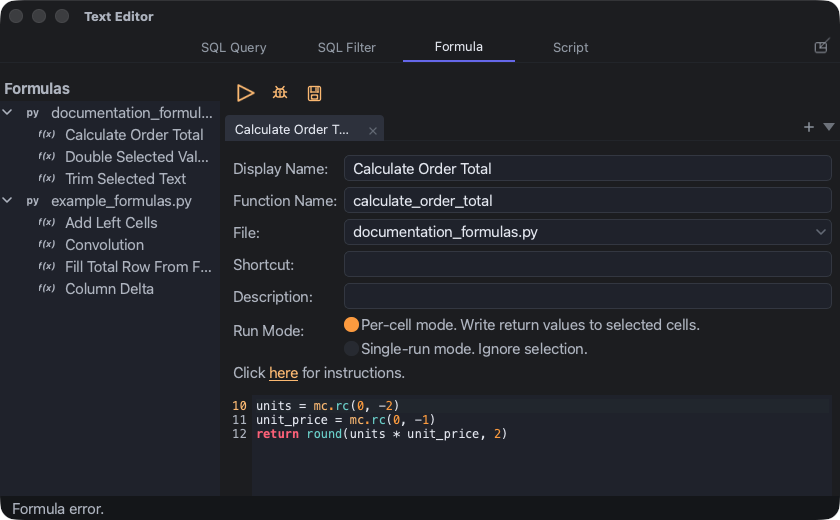
The Formula Editor is a dedicated code editor window for writing and editing formulas. It has the following features:
- Command Launcher (or palette)
- Side Bar with a list of saved formulas
- Tabs for multiple formulas
- Multiple cursor support
- Editing commands such as
Move Line [Up|Down],Indent Line,Insert Line [Above|Below], andDelete Line
At the top of the editor, you'll find:
- Display Name - A human-readable title for the formula (e.g.
Sum Two Columns). This is what appears in the Formula Manager. - Function Name - The Python function name, typically in snake_case (e.g.
sum_two_columns). This is the actual name used in the.pyfile. - Run Mode - Radio buttons to choose between:
- Per-cell mode. Write return values to selected cells.
- Single-run mode. Ignore selection.
The editor shows only the code inside the function -- not the def line, decorators, or import statements. Modern CSV manages those automatically based on the Function Name and Run Mode fields above the editor. This means the code you write is not indented even though it's technically inside a Python function. If you're accustomed to Python conventions, this may look unusual -- for example, a return statement appearing at the leftmost indentation level. This is by design: it keeps the editor clean and lets you focus on the logic without worrying about the surrounding function structure.
For example, when you write this in the editor:
price = mc.rc(0, -1)
tax = price * 0.08
return mc.analysis.round(price + tax, 2)
Modern CSV stores it as:
import moderncsv.formulas as mc

def calculate_price_with_tax():
    """
    Name: Calculate Price with Tax
    Description: Add 8% to the sale price to get the final price.
    """

    price = mc.rc(0, -1)
    tax = price * 0.08
    return mc.analysis.round(price + tax, 2)
If you prefer to work with the full Python source directly, you can call Open File in External Text Editor or Open in External Text Editor. It will open the underlying .py file in the editor set in the External Text Editor setting.
Editor Commands
The Formula Editor has its own set of commands, accessible from its menu bar, keyboard shortcuts, or its own Command Launcher.
The File menu commands act on the .py file. Formula-list commands such as Duplicate Formula act on one formula inside a file.
Delete Formula removes the current formula from its file.
File
| Command | Shortcut |
|---|---|
New Formula |
Ctrl+N |
Open File in External Text Editor |
|
Save |
Ctrl+S |
Close Tab |
Ctrl+W |
Copy File Path to Clipboard |
|
Copy File Name to Clipboard |
|
Copy Folder Path to Clipboard |
|
Show (Reveal) File in File System |
|
Duplicate File |
|
Move File |
|
Rename File |
|
Delete File |
|
Close |
Ctrl+Q |
Edit
| Command | Shortcut |
|---|---|
Undo |
Ctrl+Z |
Redo |
Ctrl+Y |
Cut |
Ctrl+X |
Copy |
Ctrl+C |
Paste |
Ctrl+V |
Data
| Command | Shortcut |
|---|---|
Move Line Up |
Ctrl+Shift+Up |
Move Line Down |
Ctrl+Shift+Down |
Insert Line Below |
Ctrl+Enter |
Insert Line Above |
Ctrl+Shift+Enter |
Delete Line |
Ctrl+Shift+K |
Delete to End of Line |
Ctrl+K, then Ctrl+K |
Duplicate Line |
Ctrl+Shift+D |
Join Line Below |
Ctrl+J |
Comment Line |
Ctrl+/ |
Indent Line |
Ctrl+] |
Outdent Line |
Ctrl+[ |
Selection
| Command | Shortcut |
|---|---|
Select Current Line |
Ctrl+L |
Select Up |
Ctrl+Alt+Up |
Select Down |
Ctrl+Alt+Down |
Select Word |
Ctrl+D |
Select All Words |
Alt+F3 |
Find
| Command | Shortcut |
|---|---|
Find |
Ctrl+F |
Replace |
Ctrl+H |
Run
| Command | Shortcut |
|---|---|
Run |
Ctrl+R |
Run (Debug) |
F5 |
Open Python Debug IDE |
Tools
| Command | Shortcut |
|---|---|
Command Launcher |
Ctrl+Shift+P |
View Formulas Python Console in Main Window |
Go To
| Command | Shortcut |
|---|---|
Go to Formula |
Ctrl+P |
Switch to Tab on the Right |
Ctrl+PgDown |
Switch to Tab on the Left |
Ctrl+PgUp |
File
| Command | Shortcut |
|---|---|
New Formula |
Cmd+N |
Open File in External Text Editor |
|
Save |
Cmd+S |
Close Tab |
Cmd+W |
Copy File Path to Clipboard |
|
Copy File Name to Clipboard |
|
Copy Folder Path to Clipboard |
|
Show (Reveal) File in File System |
|
Duplicate File |
|
Move File |
|
Rename File |
|
Delete File |
|
Close |
Cmd+Q |
Edit
| Command | Shortcut |
|---|---|
Undo |
Cmd+Z |
Redo |
Cmd+Y |
Cut |
Cmd+X |
Copy |
Cmd+C |
Paste |
Cmd+V |
Data
| Command | Shortcut |
|---|---|
Move Line Up |
Cmd+Shift+Up |
Move Line Down |
Cmd+Shift+Down |
Insert Line Below |
Cmd+Enter |
Insert Line Above |
Cmd+Shift+Enter |
Delete Line |
Cmd+Shift+K |
Delete to End of Line |
Cmd+K, then Cmd+K |
Duplicate Line |
Cmd+Shift+D |
Join Line Below |
Cmd+J |
Comment Line |
Cmd+/ |
Indent Line |
Cmd+] |
Outdent Line |
Cmd+[ |
Selection
| Command | Shortcut |
|---|---|
Select Current Line |
Cmd+L |
Select Up |
Cmd+Opt+Up |
Select Down |
Cmd+Opt+Down |
Select Word |
Cmd+D |
Select All Words |
Opt+F3 |
Find
| Command | Shortcut |
|---|---|
Find |
Cmd+F |
Replace |
Cmd+Opt+F |
Run
| Command | Shortcut |
|---|---|
Run |
Cmd+R |
Run (Debug) |
F5 or Cmd+Shift+Y |
Open Python Debug IDE |
Tools
| Command | Shortcut |
|---|---|
Command Launcher |
Cmd+Shift+P |
View Formulas Python Console in Main Window |
Go To
| Command | Shortcut |
|---|---|
Go to Formula |
Cmd+P |
Switch to Tab on the Right |
Cmd+PgDown |
Switch to Tab on the Left |
Cmd+PgUp |
Quick Formula
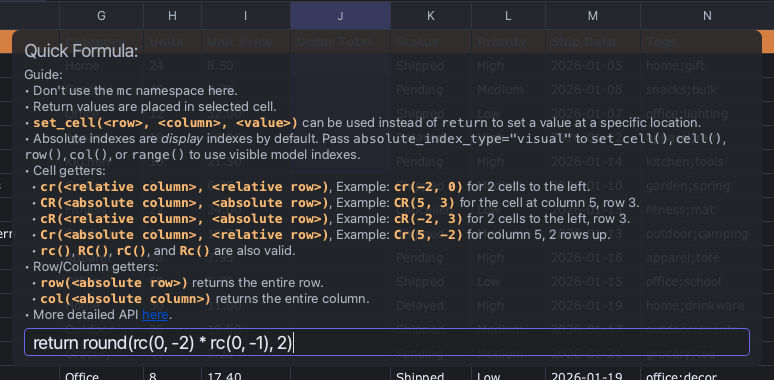
The Quick Formula command is a way to run a single-line formula on the fly by typing it in the launcher. You don't need to use the mc namespace. For instance, if you want to add two cells together, type:
return cr(-2, 0) + cr(-1, 0)
If there's a bug, it will pull up the Formulas Console and ask if you want to fix it in the launcher or in the Formula Editor. It will also give you the option to save the quick formula for future use.
Formulas Console
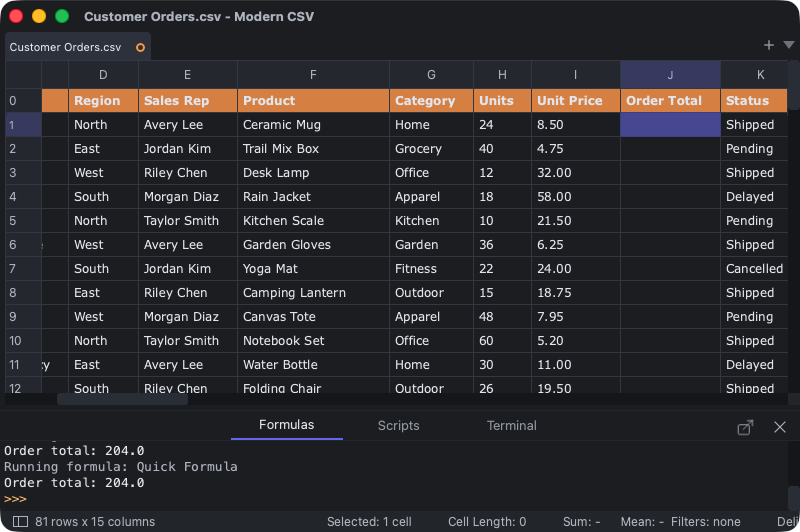
The Formulas Console is a Python console that displays the output of print() statements and Python error messages.
Where Formulas Are Stored
Formula files are .py files stored in the preferences folder under python-user/formulas. You can open the preferences folder with the Open Preference File Folder command.
Modern CSV scans this folder recursively for .py files and loads all the functions it finds. Each file can contain multiple formulas.
In the Formula Editor window, the side bar lists each .py file along with each formula found in it.
Debugging
Most debugging can be done by using print() statements to output variables to the Formulas Console. If you need a full debugger with breakpoints, call stacks, and variable states, you can call Run (Debug) instead of Run. Debugging with Visual Studio Code is officially supported. It will likely work on other IDEs, but it's only guaranteed to work for VS Code.
Running Run (Debug) opens the Debug window:

Debugging uses the Debug Adapter Protocol (DAP) to communicate with the IDE. Modern CSV launches the Python worker with a local debug server at the address defined by the DAP IP Address setting (default: 127.0.0.1:5678). The IDE is defined by the Python Debug IDE Path setting (default: the typical VS Code path on your platform). Both settings can be changed in this window. The Open IDE button will open the IDE to the folder where the Formulas Python files are stored (<Modern CSV config folder>/Modern CSV/python-user/formulas). It comes with a launch.json file configured for VS Code, so you should be able to lay down break points, hit F5, and start debugging right away.
Examples
These examples show common problems that formulas can solve. Each example shows what you would type in the Formula Editor (just the function body, without def or indentation).
The Formulas Examples page shows the examples bundled with the plugin.
Add Two Cells
Write each cell as the sum of the two cells to its left. Select the output column and run in per-cell mode.
return mc.rc(0, -1) + mc.rc(0, -2)
Add Two Columns
Same idea as above, but operates on entire columns at once. Select only the top cell of the output column and run in per-cell mode. Because mc.col() returns the full column as an array, the addition happens in a single operation and the result list populates downward from the selected cell. This is much faster than selecting every cell in the column individually, since it requires only one Python call instead of one per row.
return list(mc.col(dc=-1) + mc.col(dc=-2))
Tax Calculation
Add 8% tax to a price column and round to 2 decimal places. Select the output cells and run in per-cell mode.
return mc.analysis.round(mc.rC(0, "Price") * 1.08, 2)
Letter Grades
Convert numeric scores to letter grades. Select the cells next to the scores and run in per-cell mode.
score = mc.rc(0, -1)
if not mc.is_numeric(score):
    return "N/A"
if score >= 90:
    return "A"
if score >= 80:
    return "B"
if score >= 70:
    return "C"
if score >= 60:
    return "D"
return "F"
Fill Empty Cells with a Default
Replace blank cells with Unknown. Select the cells and run in per-cell mode.
return mc.analysis.fillna(mc.rc(0, 0), "Unknown")
Running Total
Write a cumulative sum of column B into column C. Run in single-run mode.
totals = mc.analysis.cumsum(mc.col(c="B"))
mc.set_cell(mc.first_row_index(), "C", list(totals))
Populate a Summary Row
Write min, max, and average below each numeric column. Run in single-run mode.
last = mc.last_row_index()
for c in range(mc.first_col_index(), mc.last_col_index() + 1):
    data = mc.col(c=c)
    if mc.is_numeric(data):
        mc.set_cell(last + 1, c, mc.analysis.min(data))
        mc.set_cell(last + 2, c, mc.analysis.max(data))
        mc.set_cell(last + 3, c, mc.analysis.round(mc.analysis.mean(data), 2))
Extract Year from a Date Column
Pull out just the year from dates. Select the output cells and run in per-cell mode.
dt = mc.analysis.parse_date(mc.rC(0, "Date"))
return mc.analysis.year(dt)
Rank by Score
Write the rank of each student's score. Run in single-run mode to write all ranks at once.
ranks = mc.analysis.rank(mc.col(c="Score"), method="dense")
mc.set_cell(mc.first_row_index(), "Rank", list(ranks))
See the Formulas API Reference for API details.